iPhone / iPad
$2.99 once on the App Store. Use the same purchasing account to restore access on both devices. Check the App Store page for system requirements. On the product page, verify the developer and app ID before purchasing.
Shadowrocket Official Guide
A rule-based proxy client for all platforms for importing existing subscriptions and setting up rule-based routing. iPhone / iPad: $2.99 once on the App Store; Mac, Windows, Android, and Linux: free.
Current version · iPhone / iPad: $2.99 once on the App Store; Mac, Windows, Android, and Linux: free
First-time setup: subscription import and connection steps →
Shadowrocket
iPhone / iPad: $2.99 once on the App Store; Mac, Windows, Android, and Linux: free. Desktop and Android packages are available from this site's download page under /dl/shadowrocket/. Buying the client does not include a service subscription. Before setup, have your existing subscription or server details ready.
$2.99 once on the App Store. Use the same purchasing account to restore access on both devices. Check the App Store page for system requirements. On the product page, verify the developer and app ID before purchasing.
Free · Apple Silicon / Intel. In the Apple menu, open “About This Mac” to check the chip or processor name, then choose the matching installer. If macOS blocks the first launch, follow the “Privacy & Security” instructions on the download page.
Free. The download page provides a 64-bit installer. Confirm that the file is from this site before opening it. If SmartScreen appears, check the source first, then follow “More info → Run anyway” to continue.
Free. The download page provides an arm64 package. If Android asks you to allow installation from unknown apps, grant the permission only to the browser used for this download. Review the permission in system settings after installation.
Free · deb / rpm / AppImage. Choose a package format that matches your distribution's package manager. AppImage files need execute permission before use. The download page lists the relevant commands and installation requirements; don't pass other formats directly to a package manager.
The five options above are versions of the same product for different platforms. When switching devices, check the installation format again. Whether an existing subscription works also depends on its contents, protocol parameters, and support in the current version on that platform. Installing the app does not configure a server; import your own details before connecting for the first time.
DOMAIN-SUFFIX
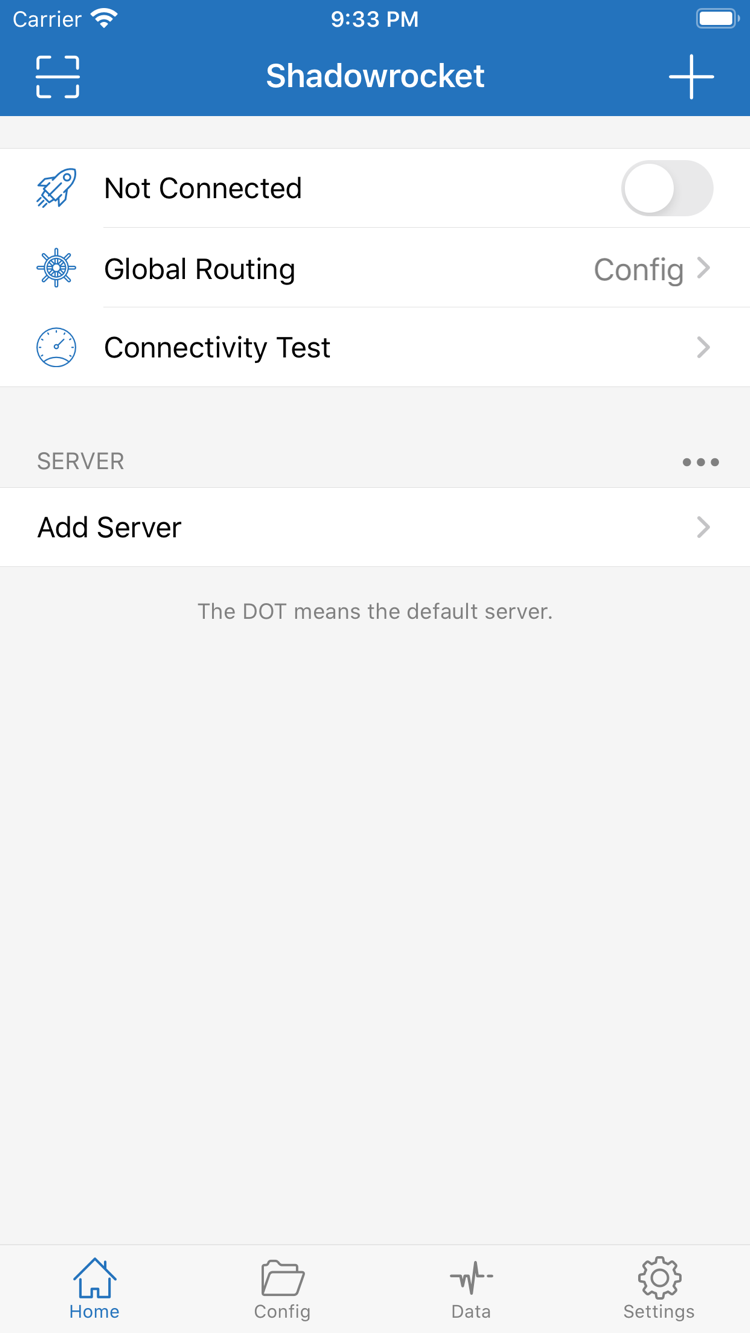
First distinguish where a connection goes from which connections should use a proxy. Server details determine the available outbound connection, Global Routing determines how traffic is handled, and rules in Config determine the matching order. The sections below explain where to find settings for common tasks; the actual interface may vary by device.
After selecting Config under Global Routing on Home, connections are handled according to the current configuration. DOMAIN-SUFFIX matches domain suffixes, GEOIP checks the region associated with the destination IP, and FINAL handles connections that did not match earlier rules. Rules are generally checked from top to bottom, so more specific conditions should come before broader ones. Understand the difference between PROXY, DIRECT, and REJECT results. A selected server alone does not guarantee that a request uses the proxy. After making changes, check the connection log to see which rule actually matched.
Global Routing and routing rulesOn Demand can trigger a connection based on network conditions; it does not replace routing rules in Config. Find On Demand in Settings and check which Wi-Fi and Cellular conditions are available in your version before saving the settings you need. For initial setup, connect manually first, then add one condition at a time and test it. If the connection starts again after you turn off the main switch, check the On Demand conditions here instead of repeatedly deleting servers. After switching networks, confirm that the connection status is as expected.
Connection controls and verification stepsWhen adding an existing server, choose the matching protocol under Type in Add Server, then check Host, Port, and authentication fields. Shadowsocks, VMess, VLESS, Trojan, and Hysteria2 use different parameters; don't reuse the same password or port across different Types without checking. For TLS, transport settings, or server names, refer to the existing server details field by field. After importing, open the details and review the fields. Available protocols and options depend on the current interface on each platform.
How to fill in Add ServerA subscription reads a server list from a link you already have; it is not the same as a routing rules configuration file. Open the add option on Home, select Subscribe, and paste the complete link. Save it, update it, then check that the servers appear in the expected group. Spaces around the link, expired access credentials, or network errors can cause an update to fail. Before manually changing subscription-generated entries, check whether the next update will overwrite your changes. Subscription links contain access credentials; do not include the full URL in public screenshots or messages when troubleshooting.
Import an existing subscriptionConfiguration files in Config organize settings such as General, Rule, and Hosts. After importing a file, check which one is active, then select Config under Global Routing so its routing rules are applied. Keep a restorable copy before making changes, and adjust one category at a time to make it easier to identify issues if DNS and rules change together. When using iCloud sync, check the current account and sync status as well; after syncing, confirm which file is selected on the destination device.
How configuration relates to routing modesConnectivity Test, Diagnostics in Settings, and Data provide different kinds of information. Check the local network first, then server parameters and connection status, and finally whether DNS or rules affect the request. A test response does not guarantee a complete webpage connection, and traffic in Data does not mean every app uses the same outbound connection. Change one setting at a time and note what happens before and after. This helps distinguish an unreachable server, a DNS issue, or an unexpected rule match.
Troubleshooting by layerChoose Config for everyday rule-based routing, Proxy to temporarily check the proxy's outbound connection, or Direct to compare with a local direct connection. Proxy here is an interface option; PROXY in a rule is a processing result. After troubleshooting, restore the previous mode and confirm that the active configuration file and selected server have not also changed.
Subscription updates, configuration updates, and app updates are separate actions: a subscription update changes the server list, a configuration update may change rules and DNS settings, and an app update replaces the client. When something changes, identify which update occurred before testing again. Don't assume every issue means a “server needs refreshing.”
Subscribe
The steps below use the iPhone / iPad interface as a reference. First establish a connection you can verify, then configure automatic connections, refine rules, and sync settings. On other platforms, follow the options shown in the actual interface.
Open Add Server from Home. If you have a subscription, select Subscribe, paste the full URL, save, and update. If you have details for one server, choose its Type first, then enter Host, Port, and authentication parameters.
After saving, return to the SERVER group and confirm that the entry appears and is selected. The name is only a label; the protocol and connection fields determine how it connects. Don't rely on the display name to confirm an import.
Open Global Routing, select Config if you already have routing rules, then check which file is active in Config. For temporary troubleshooting, compare Proxy and Direct, but note the original selection.
If the same server behaves differently across websites, check rules and DNS before changing authentication details. When a rule specifies DIRECT, selecting a proxy server will not automatically route that request through PROXY.
Return to Home and turn on the connection switch. On first use, follow the system prompt to approve the VPN configuration. Check the connection status, run Connectivity Test, and open a familiar webpage to verify access.
If the test and webpage results differ, keep the error message and check the local network, server reachability, DNS, and rules separately. Seeing the switch turned on does not verify that a real request succeeded.
Check that you have complete connection details first. The client does not include servers. This site does not provide, sell, or recommend servers or subscriptions; the guide explains how to use information you already have. If a subscription update fails, first check that the URL is complete and its access credentials are valid, then check whether the update request can reach the destination.
App Store
Shadowrocket is a closed-source commercial app. Verify the product using the developer name, official app icon, and app ID. Similar names, search ranking, and promotional descriptions are not substitutes for the product page.
Open the Shadowrocket product page in the iPhone / iPad App Store and verify that the developer is Shadow Launch Technology Limited, then check the official app icon. The app ID in the product page URL should be 932747118. The nickname “Shadowrocket” or a search result title alone cannot verify the app. Check the App Store page for system requirements, and confirm your device meets them before purchasing.
Desktop and Android users should choose their platform from this site's download page. Package URLs are under /dl/shadowrocket/. If a system security prompt appears on first launch, check the download source and file type, then follow the platform-specific steps on the download page. Disabling all system security protections should not be a standard installation step.
App Store search results depend on the region of the account used for the store, not directly on the device language. If the app does not appear in the mainland China store, check the current account and “Country/Region” under “Media & Purchases” in system settings, and confirm which storefront is used to open the product page. Changing the device language does not change the storefront. Follow Apple's displayed requirements and prompts when changing an account's region.
If the product page opens but the download button is unavailable, check system compatibility, account prompts, network connection, and payment status in that order. Avoid repeatedly signing out or changing regions just to test. Reading the specific error message usually makes it easier to decide what to do next.
The iPhone / iPad version costs $2.99 once on the App Store. The same purchasing account can restore access on both devices; the Mac, Windows, Android, and Linux versions are free. Prices may appear in local currency on different storefronts. The product page and purchase confirmation show the final amount. A one-time client purchase covers how you get the app, not how long an external server is available.
When changing devices or reinstalling, sign in to the App Store with the original purchasing account, find Shadowrocket in your purchased apps, and download it again. If the page still shows a price, check the account, storefront, and original purchase history. Family Sharing availability depends on the terms shown on the product page and in Family settings at the time; an app installed on another device does not by itself confirm a purchase in your current account.
Buying the client does not include a service subscription. The app reads configuration, establishes connections, and applies routing rules. Server addresses, subscription validity, and access credentials depend on the information you already have. The app can open normally even if a subscription has expired, and a successful subscription update does not mean every server is currently reachable. Check client settings and server details separately rather than treating them as one issue.
Manage iPhone / iPad app updates through the App Store. For other platforms, get updates from this site's download page. Before updating, keep a backup of any configuration you need. Afterward, check the selected server, Global Routing, and active file, then test the connection. Updating the app does not update a subscription, and restoring the app does not necessarily restore all local configuration.
Global Routing
After completing the basic steps, find an article for the issue you're seeing. Identifying whether the problem involves importing, mode selection, or DNS helps avoid unnecessary parameter changes.
Answers ten common questions for first-time users, from importing existing subscriptions and choosing a server to the connection switch and rule updates. Each answer gives steps by interface location to help you check your setup after installation.
Read article →Learn how server tests and DNS lookups differ, and why a test response may not mean a webpage will load. Check the local network, DNS, connection, and rules in sequence instead of changing several settings at once.
Read article →See how each option handles connections and how the active configuration and selected server affect routing. Includes choices for everyday rule-based use and temporary comparisons during troubleshooting.
Read article →For desktop and Android installation and first-launch prompts, see the download guide. If servers do not appear after importing a subscription, check the group and update results using the getting started guide. If the connection works but some websites do not, check Global Routing and rule matching. For help identifying a specific error, follow the steps in troubleshooting.